
PONT Tutorial | Guide to Adding Workspaces in PONT's Space Management System
Managing workspace effectively is key to running a successful space operation. In this guide, we'll show you how to use PONT's powerful workspace management tools to streamline your operations.
PONT makes it easy to add workspaces individually or in bulk depending on your needs.
Whether you're managing a small office or a large coworking space, PONT offers flexible solutions to fit your needs. You can add spaces one at a time or handle multiple workspaces at once. This tutorial will walk you through the process step by step.
We'll cover everything you need to know about:
Setting up new workspaces
Managing multiple spaces at once
Using PONT's space management features
Making the most of your workspace hub
Let's get started with making your space management easier and more efficient with PONT.
Navigating the Resources Module

Think of resources as the home for all of your bookable products.
Finding the Resources Module
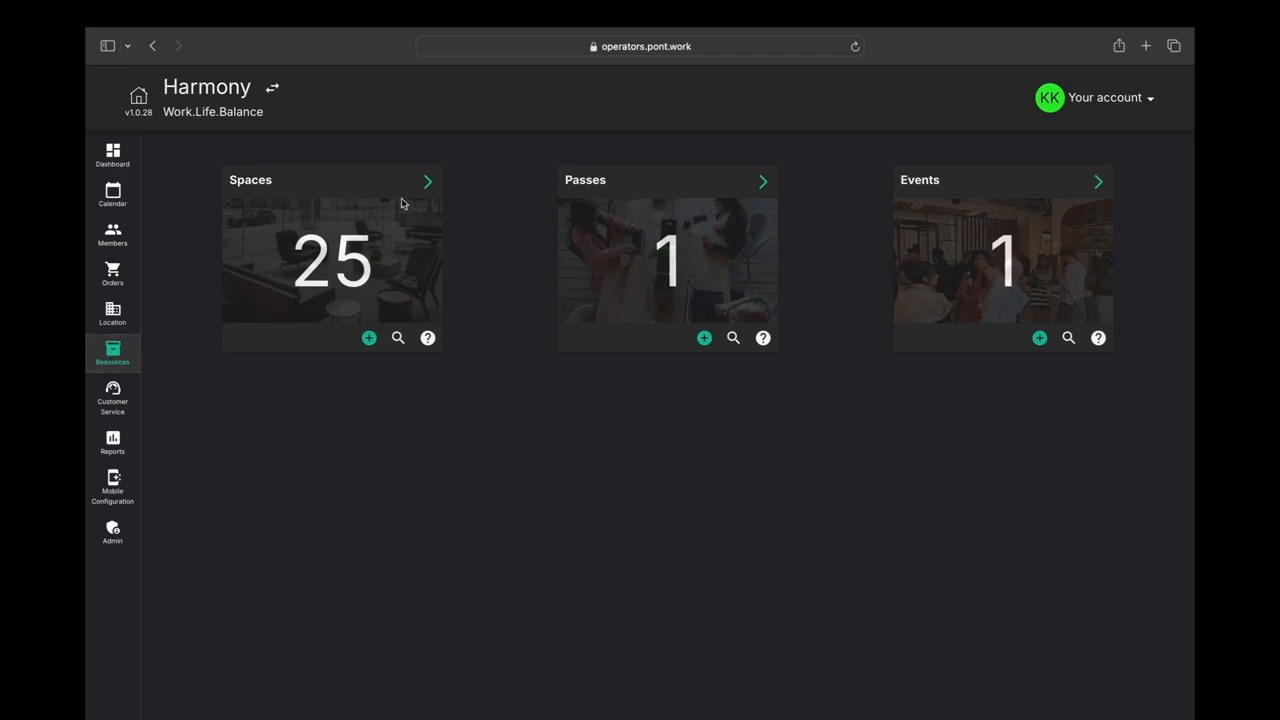
Getting to your resources is easy. Just look at the left side of your dashboard. You'll see a control panel with different options. The resources module is right there, ready to help you manage your space.
What You Can Manage
The resources module lets you handle three main types of bookable items:
1. Spaces
Workstations
Private offices
Meeting rooms
Co-working desks
2. Passes
Day passes
Drop-in options
Quick access passes
3. Events
Workshops
Meetups
Special activities
This simple layout makes it easy to find and manage everything in one place. Whether you need to set up a new meeting room or create day passes, you'll find all the tools right here in the resources section.
Creating a New Workspace
Adding a new workspace and PONT is straightforward.
Quick Add Options
Getting started with a new workspace is simple. You have two easy ways to add spaces:
Use the plus icon for quick adding
Click the caret icon to see all your spaces
Managing Your Space List
When you view your spaces, you'll find helpful tools to:
Filter your spaces
Edit existing spaces
See your full inventory
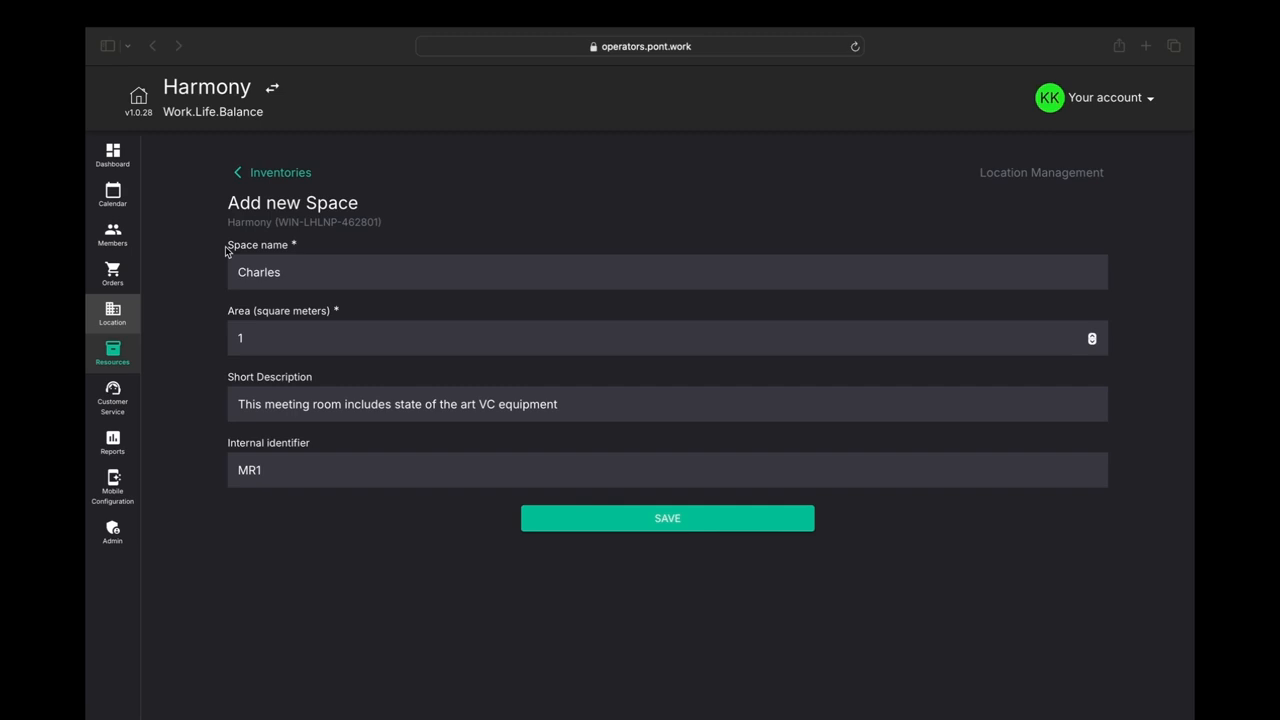
Adding Basic Details
When creating a new workspace, you'll need to fill in some simple information:
Name of the workspace
Area size
Brief description
Internal ID (if you use one)
These basic details help keep your spaces organized and easy to find. The system saves this information right away, so you can move on to the next steps quickly.
Using the Spaces Dashboard
The Spaces card shows you everything at a glance. You can see:
Your total number of spaces
Quick access to add new spaces
Tools to manage existing spaces
This clear layout makes it easy to keep track of all your workspaces in one place.
Configuring Space Allocations and Pricing
PONT lets you sell the same space in multiple ways using a feature called allocations.
Understanding Space Allocations
PONT makes it easy to offer your workspace in different ways. You can set up the same space for various uses and pricing models. This flexibility helps you serve different types of clients better.
Creating Space Versions
To make a new version of your workspace:
Click the plus icon
Pick how the space will be used
Set up any variants you need
For example, you might offer a meeting room in different sizes:
Small room setup
Medium room option
Large room configuration
Setting Access Options
You can choose how clients get access to your space:
Through inquiry
By requesting a tour
With immediate booking availability
Partner Sharing Options
Want to work with other operators? You can share your space availability with partner businesses. This feature will be covered more fully in another guide.
Pricing Setup
After saving your space settings, you can:
Enter your pricing details
Set up availability schedules
Create different rates for members and non-members
This flexible system lets you manage your space in ways that work best for your business and your clients.
Finalizing Workspace Setup and Additional Features

You've created a flexible workspace that can be sold in multiple ways to meet your operational needs.
Multiple Selling Options
Your workspace is now ready to be offered in different ways. You can set up:
Hourly bookings
Daily rentals
Monthly leases
Six-month contracts
Managing Your Space
To make your workspace listing complete, you can:
Set Unavailability Periods
Block out maintenance times
Mark holiday closures
Reserve for special events
Add Supporting Documents
Upload brochures
Include floor plans
Share workspace guides
Enhance Your Listing
Add clear images
Write detailed descriptions
Show key features
Bulk Updates Made Easy
Need to update many spaces at once? PONT lets you make changes in bulk to save time. This feature is perfect when you need to:
Update multiple prices
Change several descriptions
Modify availability across spaces
With these tools in place, your workspace is ready to welcome clients. The flexible setup lets you adjust to market needs while keeping management simple.